Work Through an Explanation with AI Math Solver
Explore a mathematical question with step-by-step explanations. Review the reasoning, then write a spoken summary for your study audio.
Open toolUse Text to Speech on ScholarGPT to turn notes, explanations, and scripts into spoken audio. Preview 19 voices, paste your own text or draft a script with AI, then listen and download. Sign in to generate audio, with credits calculated from your text length.
Turn prepared text into audio, compare voice samples, or use AI to draft a script you can edit. Review the wording and select a voice before generating your recording.
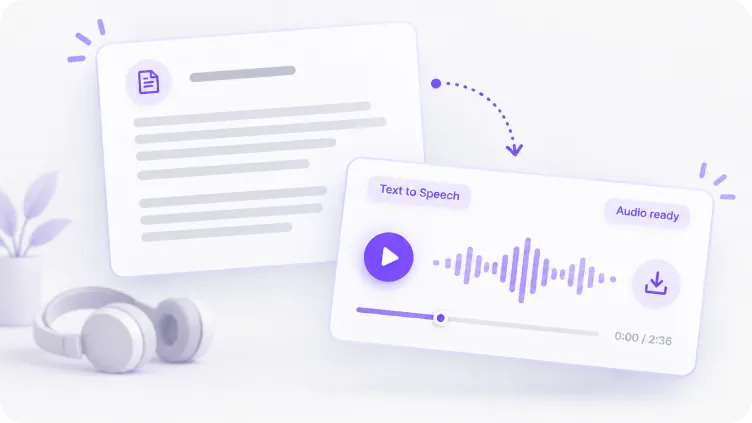
Paste a lesson summary, introduction, or finished script into Your text. The AI voice generator turns those words into a recording you can play on the page and download.
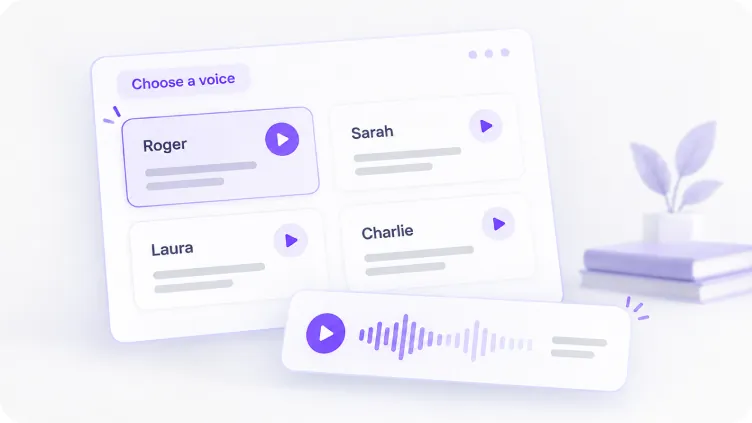
Listen to samples from Roger, Sarah, Laura, and the other available voices. Compare how they sound, then select the voice you want to read your script.
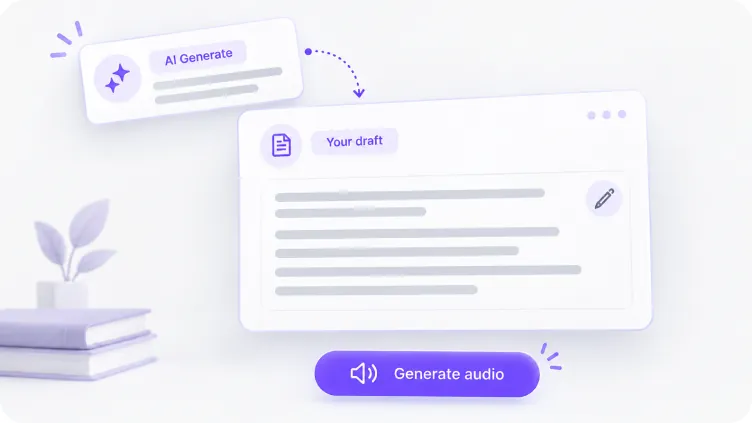
After signing in, describe your topic, audience, and tone in AI Generate. Review and edit the resulting draft before turning it into speech, or use User Input to supply your own text.
Check the estimated credit cost as you edit, listen to the completed recording, and return to saved audio in History. Keep each step of creating speech connected to the text you want to share.
The form updates the estimated audio cost as your script changes. Each started block of 1,000 characters costs 50 credits, so you can review the length before submitting.
Edit your own text or an AI draft before creating audio. Check names, facts, and phrasing so the recording reads the script you intended.
Play the completed audio to review how your text sounds. Use Edit & regenerate to adjust the wording or select another voice for a new recording.
Open History in the same account to play and download previous recordings. When a record includes its script, select its title to bring the words back into the form for editing.
Start with the words for your task: a revision summary, slide narration, or a video script. Choose a voice and create a spoken version you can review before using it.

Paste a reviewed summary of your lesson or reading material, choose a voice, and generate audio. Use the recording as another way to revisit the points in your notes.

Write an introduction or explanation for your slides, then turn the script into audio. Listen for wording you want to change and download the recording for your presentation workflow.

Turn a tutorial outline or prepared video narration into a spoken track. Preview voices, generate the audio, and listen alongside your visuals before deciding whether to revise the script.
Sign in, choose a voice, and prepare the words you want spoken. Check the estimated credits before generating, then play and download your completed audio.
Play the samples in Choose a voice, then select the speaker you want for your recording. You can try another voice when creating a new version.
Use User Input to paste your script, or sign in to use AI Generate to draft one. Edit the final wording and check the character count and estimated credits.
Select Generate audio while signed in. When the recording is ready, play it on the page and download it. Open History later to return to audio created with your account.
Work on the words before turning them into audio. Use AI Math Solver to explore a mathematical explanation or AI Rewrite Text to revise an existing passage, then bring your reviewed script back here.
Explore a mathematical question with step-by-step explanations. Review the reasoning, then write a spoken summary for your study audio.
Open toolRewrite a draft for a different tone or clearer phrasing. Copy your reviewed version into the speech tool when it is ready to read aloud.
Open tool